Complete Setup Guide for the Orbi RBR50 Mesh Router
The Orbi RBR50 is designed with advanced mesh networking features that help deliver seamless, high-speed internet across your home. This comprehensive guide walks you through how to set up your Orbi router, configure it through both a PC and mobile app, and keep it updated for optimal performance.
How to Set Up the Orbi RBR50 Router
Using a PC via Orbilogin.net
-
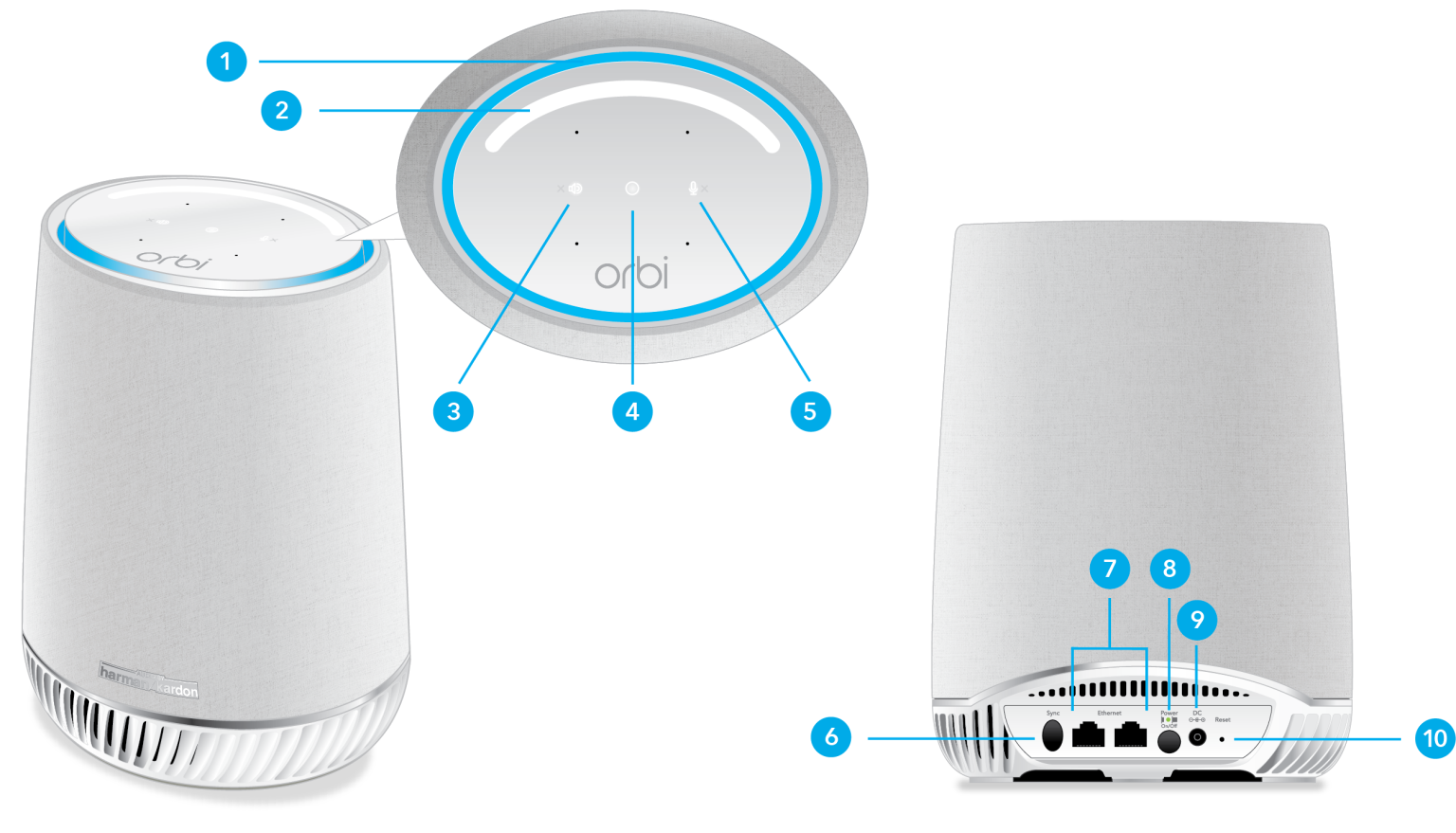
Connect your modem to the yellow WAN port on the Orbi router using the included Ethernet cable. Power on both devices.
-
On your PC or laptop, open WiFi settings and connect to the default Orbi network.
-
Launch a browser and enter orbilogin.net or 192.168.1.1 in the address bar.
-
The login screen will appear. Enter the default credentials:
-
Username: admin
-
Password: password
(If these don’t work, check the sticker on the router for correct details.)
-
-
Accept the license agreement and continue with the setup.
-
Assign a custom WiFi name (SSID) and password for your mesh network.
-
Create an admin password to manage your router settings securely.
-
Follow the on-screen steps to verify your internet connection.
Using the Orbi App on a Smartphone
-
Download the Orbi app from the Apple App Store or Google Play Store.
-
Open the app and sign in or create a NETGEAR account.
-
The app will detect your Orbi RBR50 and guide you through setup:
-
Customize your WiFi name and password
-
Save your settings and connect to the new network from your device
-
Updating the Firmware on Your Orbi RBR50 Router
Keeping your router firmware up to date ensures security, bug fixes, and performance improvements.
Method 1: Using the Orbi App
-
Connect your phone to the Orbi network and open the app.
-
Sign in if prompted, then navigate to the Settings menu.
-
Tap on Firmware Update.
-
The app will either auto-check for updates or allow you to manually trigger a check.
-
If updates are found, follow the prompts to install.
Method 2: Via Web Interface (orbilogin.net)
-
Go to orbilogin.net from your browser and sign in.
-
Navigate to Advanced > Administration > Firmware Update.
-
Choose one of the two options:
-
Online Update: Click “Check Online” to install the latest version.
-
Manual Update: If you’ve downloaded firmware from NETGEAR’s website, upload it using the Browse or Choose File button.
-
Troubleshooting Common Issues
-
Check All Cables: Make sure the Ethernet and power connections are secure.
-
Restart Your Devices: Power cycle both the modem and router by unplugging for 2 minutes, then restarting.
-
Optimize Satellite Location: Position satellites mid-way between the router and weak signal areas. Avoid barriers like thick walls or appliances.
-
Factory Reset (If Needed):
-
Locate the reset hole at the back of the router.
-
Use a paperclip to hold the button for 10–15 seconds.
-
Wait for the LED to blink amber, indicating a reset.
-
Final Thoughts
Once your Orbi RBR50 is up and running, you’ll notice a significant improvement in your home WiFi coverage. From easier setup to automatic firmware updates and enhanced connectivity, the Orbi mesh system delivers a stable, high-speed network you can rely on.







Post Comment